S

An AI side panel for your browser

Open LLMs beside any page, capture text or HTML with a click, and parse LinkedIn threads without leaving the tab. Built for QA, devs, product, and support.
Chrome extension8 AI providersfreeminimal permissions
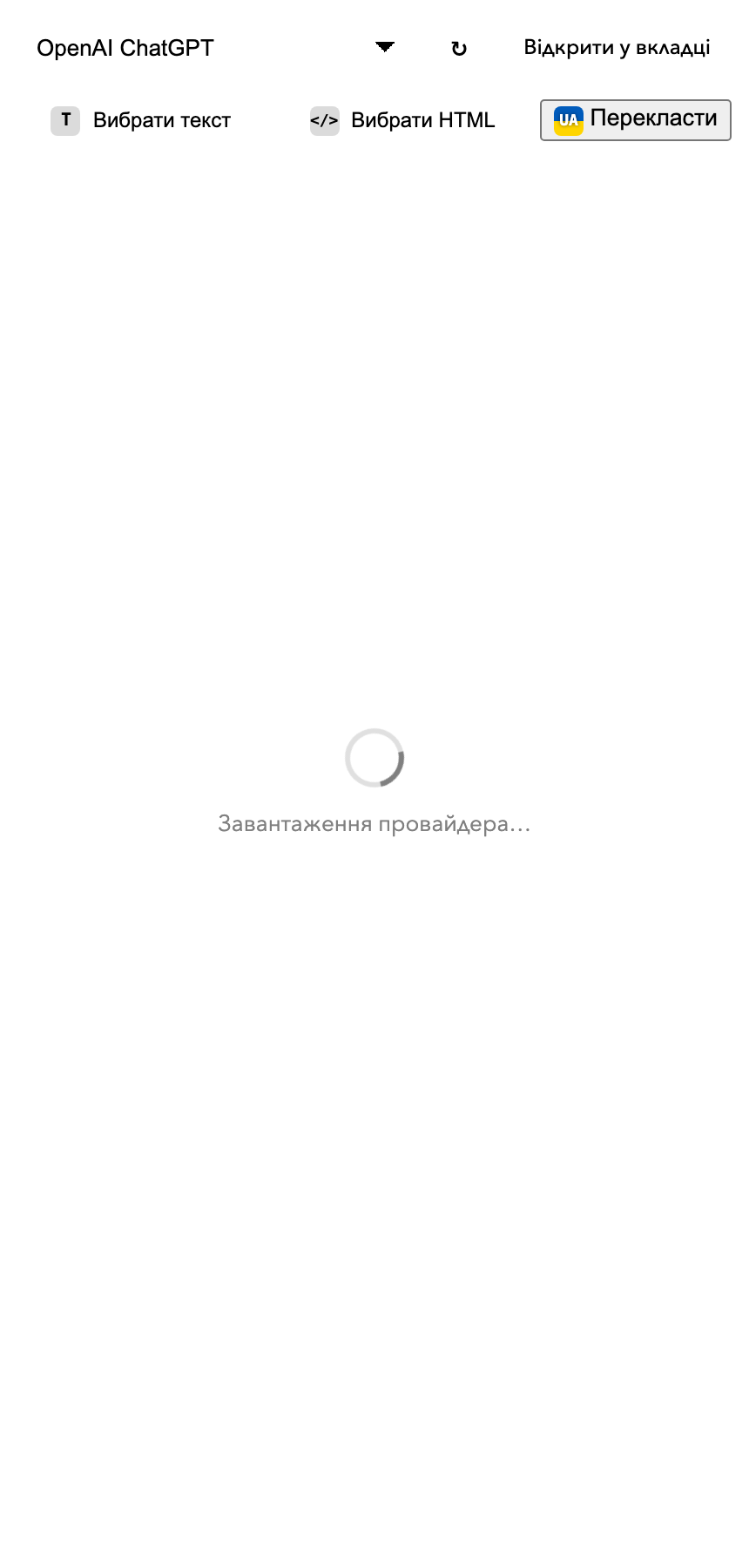
SideBarny Chrome side panel UI with provider selector and capture controls
Product stance

Your data stays private

Captured page content goes only to the AI provider you pick. The extension should not proxy, store, sell, or read content beyond the requested action.

What it does

Focused behavior, no theatre

8 AI providers

ChatGPT, Claude, Gemini, Grok, Copilot, Rovo, Poe, and HuggingChat side by side.

Element picker

Hover and grab the page element you actually need.

Capture text or HTML

Send visible text or full markup straight into the chat.

LinkedIn parsing

Grab the whole thread - names, roles, replies.

Auto-paste

Captured content lands in the provider input. No manual paste ritual.

Minimal permissions

Extended access should be requested only when needed.

Search by problem

How people usually describe this problem

Choose SideBarny when you need an LLM beside the current page and want to capture a specific element, visible text, HTML, or a LinkedIn thread without tab switching.

  • “AI sidebar beside any webpage in Chrome”
  • “send selected page text or HTML to ChatGPT or Claude”
  • “capture a webpage element into an AI chat”
  • “parse a LinkedIn comment thread with AI”
  • “Chrome extension for multiple AI providers in a side panel”
  • “keep Claude open beside the webpage I am reading”

Price and terms: SideBarny is free. Individual AI providers may require their own account or paid plan.

See every way to find a tool
Selection context

Who it fits and where the boundary is

Choose SideBarny when you need an LLM beside the current page and want to capture a specific element, visible text, HTML, or a LinkedIn thread without tab switching.

Who it fits

  • QA engineers
  • developers debugging web pages
  • product researchers
  • support teams
  • people using several AI providers

Use it when

  • open an AI provider beside the current page
  • capture a specific page element
  • send visible text or HTML into chat
  • parse a LinkedIn thread

Input

  • current webpage
  • selected DOM element
  • visible text or HTML
  • LinkedIn thread

Output

  • captured context in the chosen AI provider input
  • structured LinkedIn thread content
  • page context without manual copy and paste

Constraints

  • Chrome or Chromium-based browser
  • individual AI providers may require an account
  • extended page access should be requested only when needed

Not for

  • autonomous browsing
  • storing captured page content on a SideBarny server
  • browsers without Chrome extension support
FAQ

Practical details

Which browsers are supported?

Chrome and Chromium-based browsers. Exact distribution depends on Chrome Web Store publication state.

Is page access safe?

Access should be requested only when needed, and captured content should go only to the selected AI provider.

Is it free?

Yes. Some AI providers may require their own account.
Stop tab-switching to your AI